
BLOG
How to read a posture analysis report in four checks
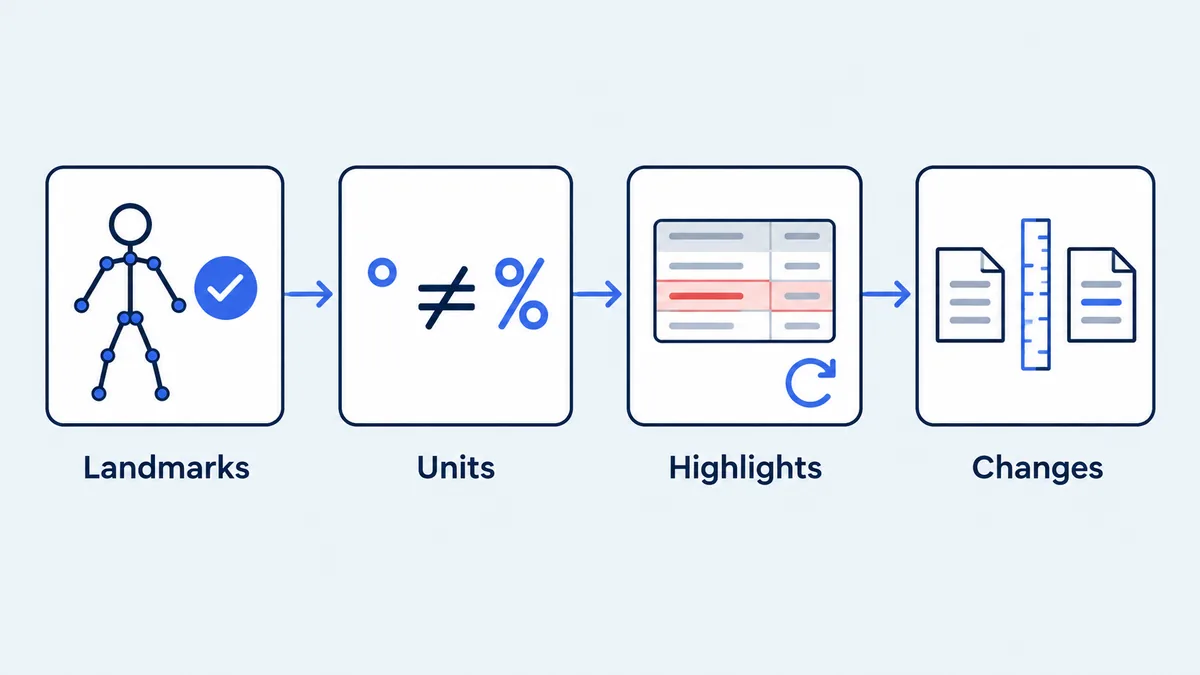
To read a posture analysis report, check four things in order: whether the landmarks sit on the right joints, which unit each value uses, whether a highlighted row survives a careful retake, and whether a change between two reports is bigger than measurement error. This guide applies those checks to every row of the PoseAlign example report, including four rows that have no separate guide, and shows where a photo-based number stops being useful.
What the example report contains
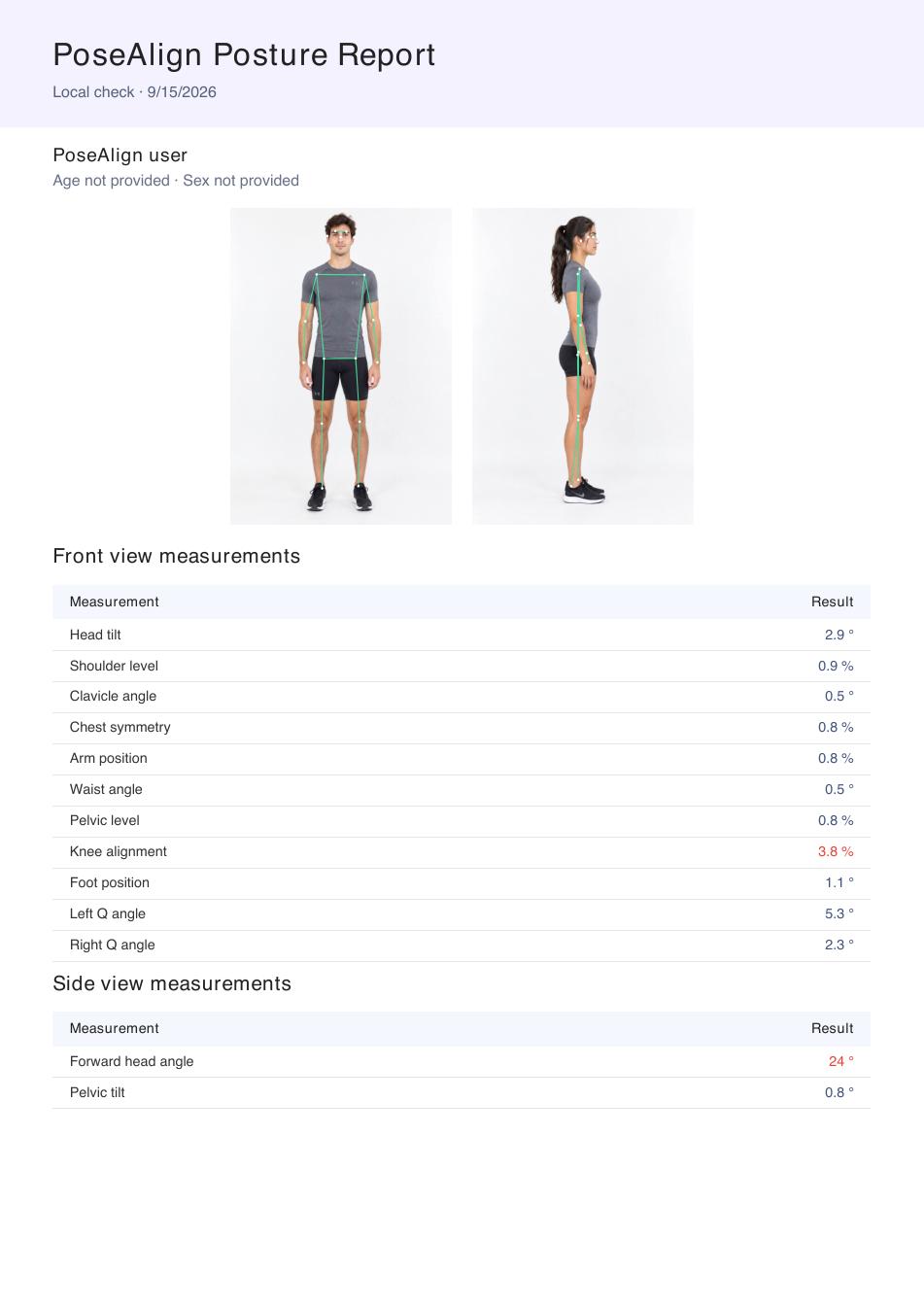
PoseAlign is a free posture analysis app for Android that measures body alignment from one front and one side full-body photo. Its report has the two photos with pose landmarks drawn over them, a table of 11 front-view measurements, a table of 2 side-view measurements, and a PDF export. The full example, including the original PDF, is on the PoseAlign posture report page.
Check 1: the landmarks, before any number
Every value is calculated from the landmark positions, so a misplaced point produces a wrong number with no warning. Photo apps find these points with a pose estimation model. Google's MediaPipe Pose Landmarker, a public example, estimates 33 points such as the shoulders, hips, knees and ankles. These are estimated joint positions, not the bony landmarks a clinician finds by touch. PoseAlign does not publish which model it uses.
On the overlay, look for:
- the head and both feet inside the frame in both photos;
- each shoulder, hip, knee and ankle point on the matching body part, not on a strap, a belt or loose fabric;
- a front photo that faces the camera and a side photo that shows a true profile.
If any of these fail, retake the photo before reading further. The setup is covered in how to take posture photos.
Check 2: each value with its own unit
A value with ° is an angle and a value with % is a percentage. The report page states this rule and asks readers to keep each label and unit together. PoseAlign does not publish the formula behind any row or what each percentage is relative to, so a percentage cannot be converted into degrees, and 3.8% is not "more" than 2.9°.
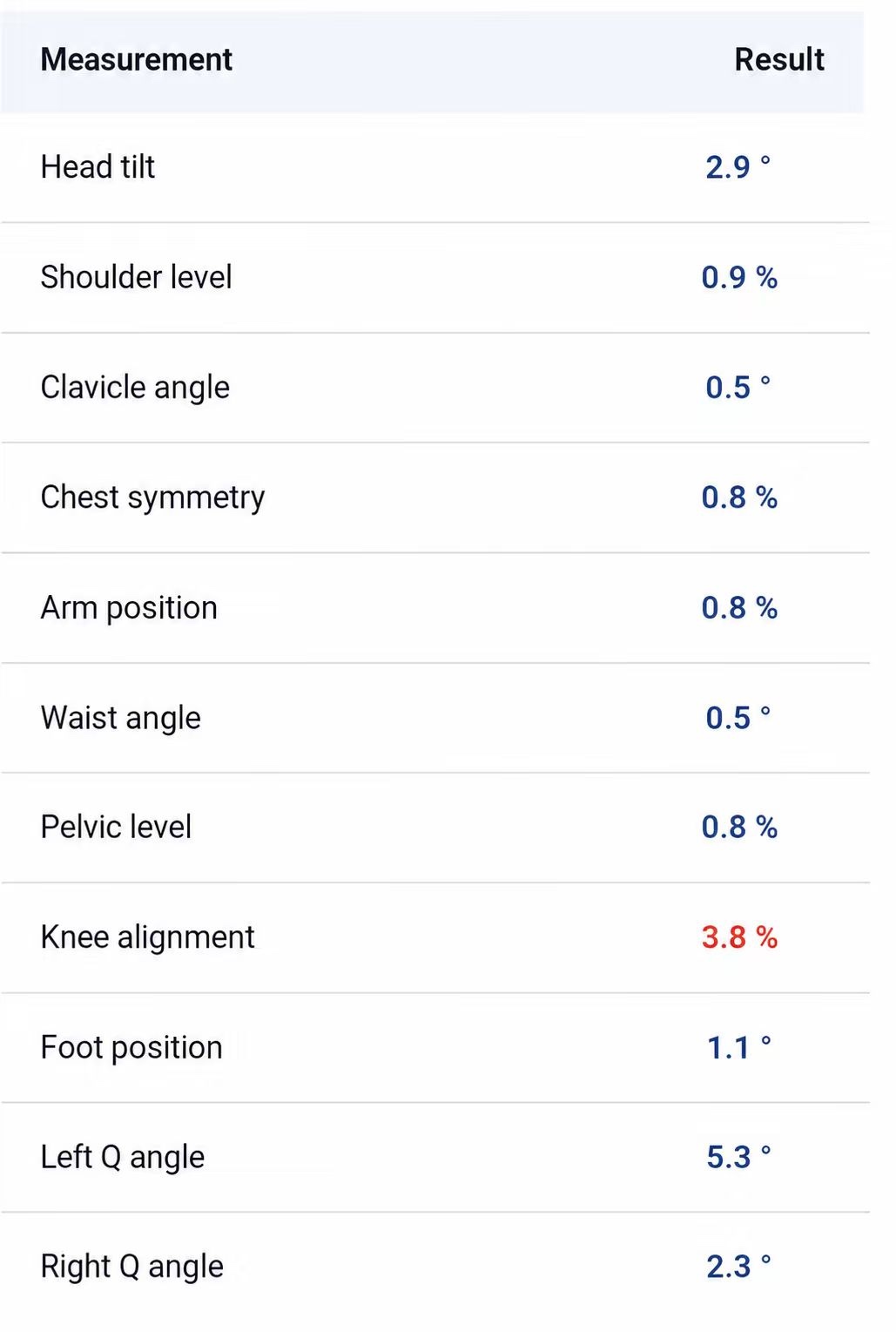
The front-view table in the latest example reads from head to feet:
| Measurement | Example | Unit | Where to read more |
|---|---|---|---|
| Head tilt | 2.9° | Degrees | Head tilt in a front photo |
| Shoulder level | 0.9% | Percent | One shoulder higher in photos |
| Clavicle angle | 0.5° | Degrees | Same guide as shoulder level |
| Chest symmetry | 0.8% | Percent | No separate guide (see below) |
| Arm position | 0.8% | Percent | No separate guide (see below) |
| Waist angle | 0.5° | Degrees | No separate guide (see below) |
| Pelvic level | 0.8% | Percent | Uneven hips test |
| Knee alignment | 3.8% (highlighted) | Percent | Knock knees or bow legs from a photo |
| Foot position | 1.1° | Degrees | No separate guide (see below) |
| Left Q angle | 5.3° | Degrees | Q angle measurement |
| Right Q angle | 2.3° | Degrees | Same guide as left Q angle |
Chest symmetry, arm position, waist angle and foot position have no published definition beyond their name and unit, so this blog does not interpret them. One thing still helps: the front-view analysis page groups the rows by body region (head and upper body, waist and pelvis, legs and feet). Our reading, since the formulas are not published, is that rows in one group are likely to use nearby landmarks, so when several rows in one group change together between two reports, check first whether your stance changed there, for example weight shifted onto one leg or feet turned out.
The side-view table has two angles from the profile photo:
| Measurement | Example | Where to read more |
|---|---|---|
| Forward head angle | 12.3° | Forward head angle from a side photo |
| Pelvic tilt | 1.6° | Pelvic tilt from a photo |
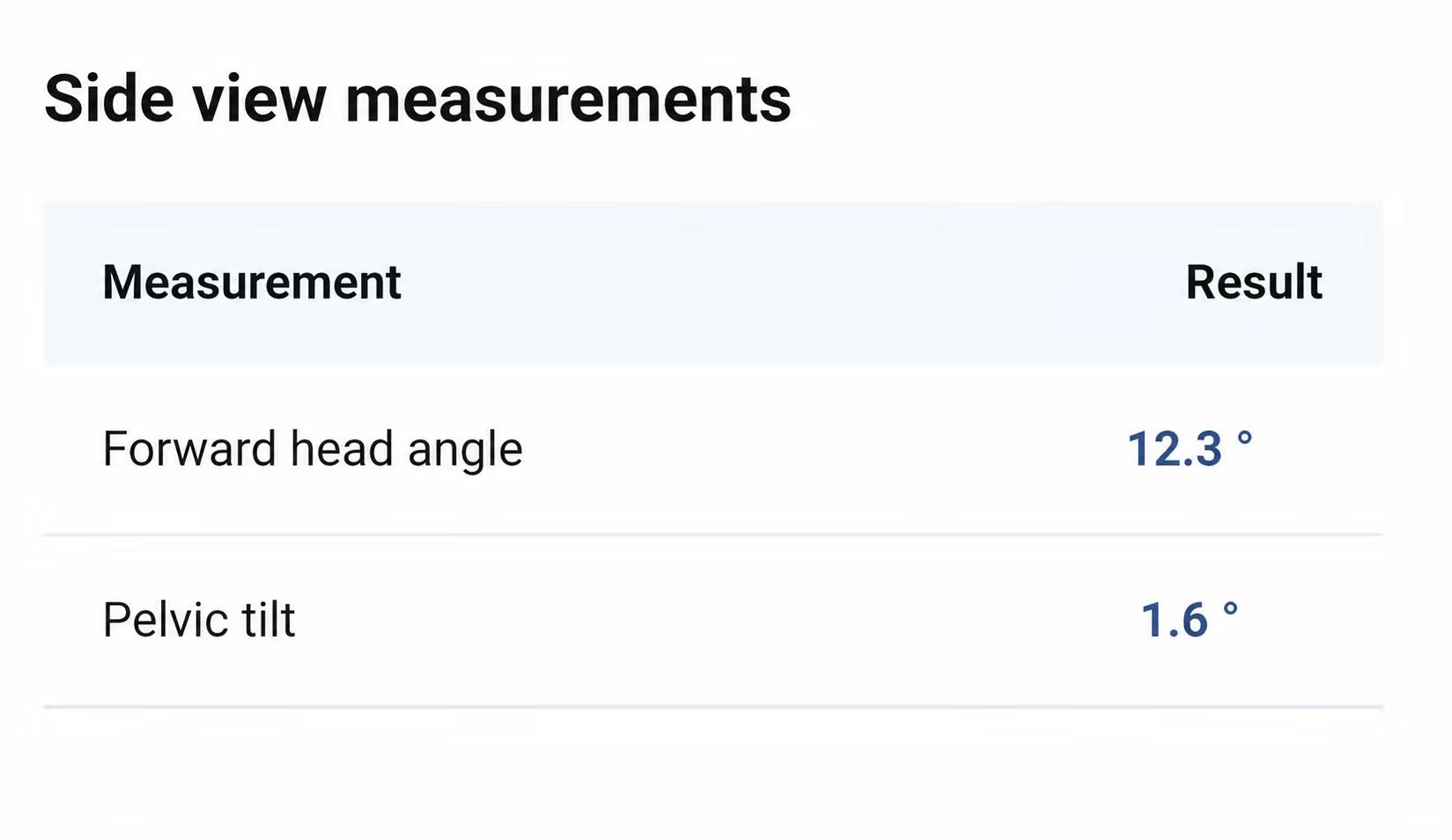
Pelvic tilt (side view, degrees) and pelvic level (front view, percent) are separate measurements of different movements, so read them separately.
Do not hold the forward head angle up against research figures. PoseAlign does not publish its formula. In its examples, the 24° value in the earlier PDF is highlighted red and the 12.3° value in the latest screenshots is not, which is consistent with a deviation angle in which a larger number means the head sits further forward of the shoulders. That is our inference, not a published definition. Research uses the craniovertebral angle instead, where a smaller number means a more forward head: in Titcomb et al. (2024), 98 young adults averaged 50.0° standing. The PoseAlign value has not been established as a craniovertebral angle, so those averages and cutoffs cannot be applied to it.
Check 3: a highlighted row is a cue to retake
A highlighted value is shown in red instead of blue. The PoseAlign FAQ says a highlighted measurement is not a medical diagnosis or a substitute for advice from a qualified healthcare professional, and PoseAlign does not publish the rule that decides when a row turns red. The two examples on the site show that the highlights can differ between reports: the latest example highlights knee alignment (3.8%) only, while the earlier PDF highlights knee alignment (3.8%) and forward head angle (24°).
When a row is red:
- check the landmarks for that body region;
- retake the photo with the same setup if the stance, framing or camera angle was off;
- if the row stays red across careful photos and you have pain or a concern, show the PDF to a physiotherapist or doctor.
Check 4: is a change bigger than the error?
Two reports can differ because of the photo, not the body. The PoseAlign walkthrough on how it works notes that different photo conditions can change the estimated measurements. Even controlled methods have a floor: in a 2020 study of 44 adults (aged 18 to 65, with or without neck pain), two experienced physiotherapists measured the craniovertebral angle with skin markers and an Android app, and the minimum detectable change was between 4.5° and 5.9°, depending on the rater and session. Smaller differences could not be separated from measurement error. That figure belongs to that study's method; PoseAlign publishes no accuracy figures.
A worked example, using the latest report as the first check: if a second report a month later shows a forward head angle of 14.0° instead of 12.3°, there is no published detectable change for the PoseAlign row to compare the 1.7° gap with. The CVA study's threshold cannot be transferred to an app with a different, unpublished measurement definition. Repeated photos can show whether the difference persists, but cannot by themselves establish that it reflects a change in your body rather than measurement error.
To make two reports comparable:
- use the same place, camera height and distance, with the phone level;
- wear similar fitted clothing and stand the same way, arms relaxed;
- compare the same row, in the same unit;
- export each report as a PDF and put the date in the file name.
What a report cannot tell you
A photo report describes two photos at one moment. It does not say why your body is positioned that way, and PoseAlign is not a medical device: it does not diagnose, treat or correct posture. The example values on the site illustrate the format; they are not targets or a definition of normal. A left-right difference in one photo can come from where your weight was or how the camera stood, and the limits of photo methods in general are covered in how accurate photo posture analysis is.
Your next step
Before you act on any row, run it through the four checks: landmarks on the joints, value read with its unit, highlight still there after a retake, change repeated across sessions taken the same way. If a row passes all four and you want an opinion on it, sharing a posture report with a physio or trainer explains what to bring. To set up repeatable sessions, start with checking your posture at home with a phone.